
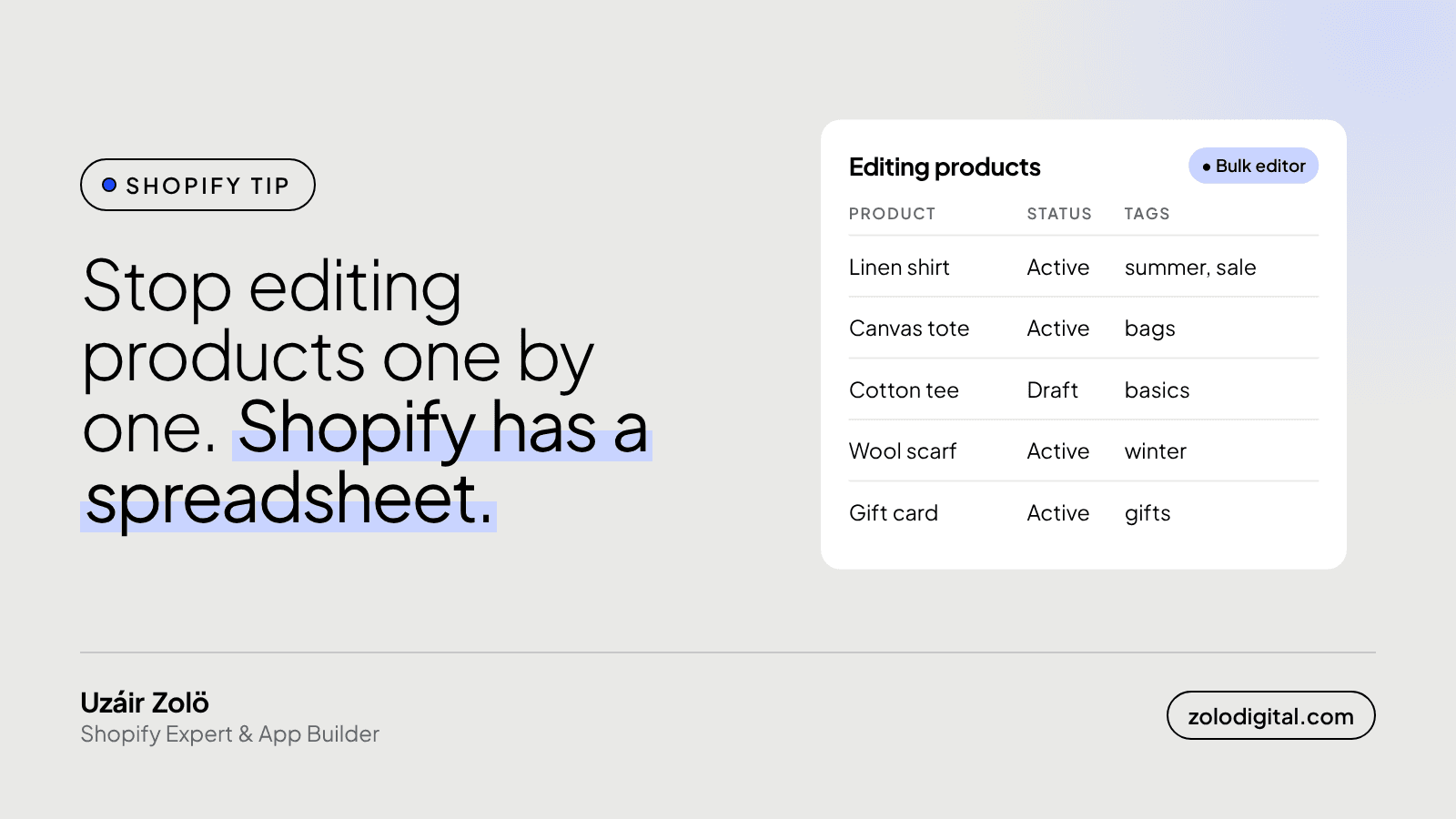
To edit many Shopify products at once, go to Products in your admin, tick the products you want to change, and click Bulk edit. Shopify opens them as a spreadsheet: one row per product and variant, one column per field. Change the cells, click Save, done. Filter before you select, and export a CSV first.
Most store owners I work with have never opened it. They change prices the long way: open product, edit, save, back, next product. That's fine for three products. By the fortieth it's not admin work anymore, it's cardio.
How do you open the Shopify bulk editor?
- In your Shopify admin, open Products.
- Narrow the list first: search, or filter by vendor, tag, product type, status or collection.
- Tick the checkbox next to each product you want, or the checkbox at the top to select the whole page. If there are more products than fit on one page, Shopify offers to select all of them.
- Click Bulk edit in the bar that appears.
You land in a grid. Products are rows, and their variants sit underneath them as rows of their own, so variant fields like price, SKU and inventory each get their own line.
What can you change in the bulk editor?
Out of the box you'll see a handful of columns. The Columns menu adds more, including:
- price and compare-at price
- SKU, barcode and inventory fields
- tags, vendor and product type
- status (active, draft, archived)
- SEO title and description
- metafields that have a definition in Settings → Custom data
That last one is the quiet hero. If your theme reads a metafield for, say, a care guide or a "ships in" note, you can fill it in for a whole collection in one sitting instead of opening every product.
How do you avoid breaking things?
The bulk editor is fast in both directions. Two habits keep it on your side.
Filter first, then select. "Select all" means all of what the list is showing. If you meant "every product from this vendor" and forgot the filter, you're now editing the whole catalogue. Check the count before you start typing.
Export a CSV before you save. On the Products page, click Export and download the same products as a CSV. Nothing is saved until you click Save in the editor, so you can leave without saving if you change your mind. Once you save, there's no undo button. The CSV is your undo.
And do big changes when the store is quiet, not in the middle of a sale.
When don't you need the grid at all?
For one-field jobs across many products, the product list does it without the editor. Tick the products, then use the actions next to Bulk edit:
- add or remove tags
- add to a collection
- set as active or draft
- archive
One click, no grid, and nothing to scroll sideways through.
What if the bulk editor isn't enough?
When a change needs logic, like "raise every price in this collection but round to .99" or "copy this metafield from one store to another", the bulk editor stops being the right tool. That's CSV import, Shopify Flow, or a small app built for your catalogue. If your admin work has grown into that shape, tell me what you're doing by hand and I'll tell you what would do it for you.
Until then: clicking into products one by one isn't a workflow. It's a lifestyle. Open the spreadsheet.


