
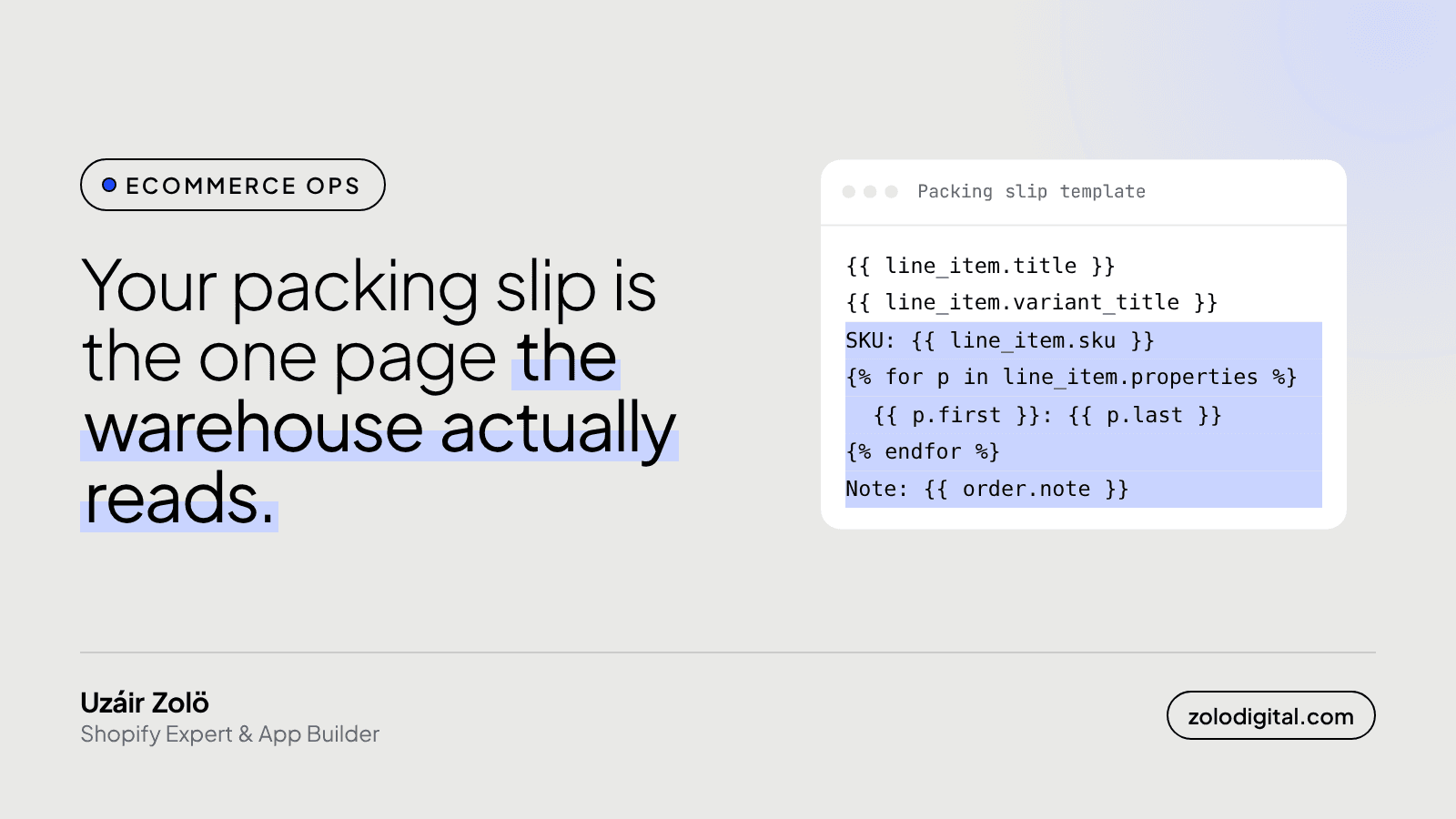
To customise the Shopify packing slip, go to Settings → Shipping and delivery → Packing slips and click Edit. The template is Liquid, like your theme. Add the SKU, the line item properties (engraving text, gift messages, anything a customer typed on the product page) and the order note, then print a test slip from a real order before you trust it.
Why does the packing slip matter so much?
Customers skim your website. The warehouse reads the packing slip, word for word, on every order, and then does exactly what it says. If the slip leaves something out, the person packing the box has no way of knowing it was ever there.
Shopify's default slip is tidy but vague. It shows the product title, the variant name in small print, the quantity and an image. That's enough for a store with ten products. It isn't enough when three lipsticks share a title and differ only by shade, or when a customer paid for a name on a mug.
What's missing from the default template?
Three things cause most of the "we shipped the wrong thing" emails:
- The SKU. Pickers match codes on shelves faster and more reliably than product names. Without it, they match by squinting at a thumbnail.
- Line item properties. If your product page collects text (an engraving, a monogram, a gift message), Shopify stores it on the line item. The default slip doesn't print it.
- The order note. "Please don't put the invoice in the box, it's a gift." The customer wrote it at checkout. The slip kept it to itself.
How do you add them?
Open the template (Settings → Shipping and delivery → Packing slips → Edit) and find the loop over line_items_in_shipment. Inside it, after the title and variant, add:
{% if line_item.sku != blank %}
  <p class="sku">SKU: {{ line_item.sku }}</p>
{% endif %}

{% for p in line_item.properties %}
  {% assign first_char = p.first | slice: 0 %}
  {% if p.last != blank and first_char != '_' %}
    <p>{{ p.first }}: {{ p.last }}</p>
  {% endif %}
{% endfor %}
The underscore check skips private properties: apps often store internal values with a name starting with _, and the warehouse doesn't need those.
Then, outside the loop, near the shipping address:
{% if order.note != blank %}
  <div class="order-note">
    <strong>Note from customer:</strong> {{ order.note }}
  </div>
{% endif %}
Give the SKU and the note a style that's hard to miss. The slip is read standing up, often in a hurry:
.sku { font-size: 16px; font-weight: 700; }
.order-note { border: 2px solid #000; padding: 8px; margin-top: 12px; }
If a variable prints nothing, check it against Shopify's packing slip variable reference. The packing slip has its own set of variables, and not everything from the theme is available there.
How do you test it without shipping something?
Click "Preview" in the editor first, but don't stop there: the preview uses sample data. Place a test order (or use a recent real one) that has a personalised product and an order note, then go to Orders, select it and choose Print packing slips. Read it as if you were the person packing. If anything you needed isn't on the paper, it isn't in the box either.
If you use an order printing app instead of Shopify's built-in slip, the same idea applies, but the app has its own template, so the change goes there.
What else is worth printing?
Once the basics are in, a few additions help bigger teams:
- Variant options on their own line, larger than the title, for stores where the shade or size is the whole point.
- The shipping method, so express orders get packed first.
- A "gift order" flag if you sell gift wrap, driven by a line item property or the note.
Keep it to what the packer needs. Every extra line is something else to skim past.
The short version
The packing slip is the most-read page your store has, and most stores never touch it. Ten minutes in a Liquid file nobody remembers exists saves a lot of apology emails.
If your fulfilment setup has more gaps than a template can fix, I can look at the whole store, from product page to packed box.


