
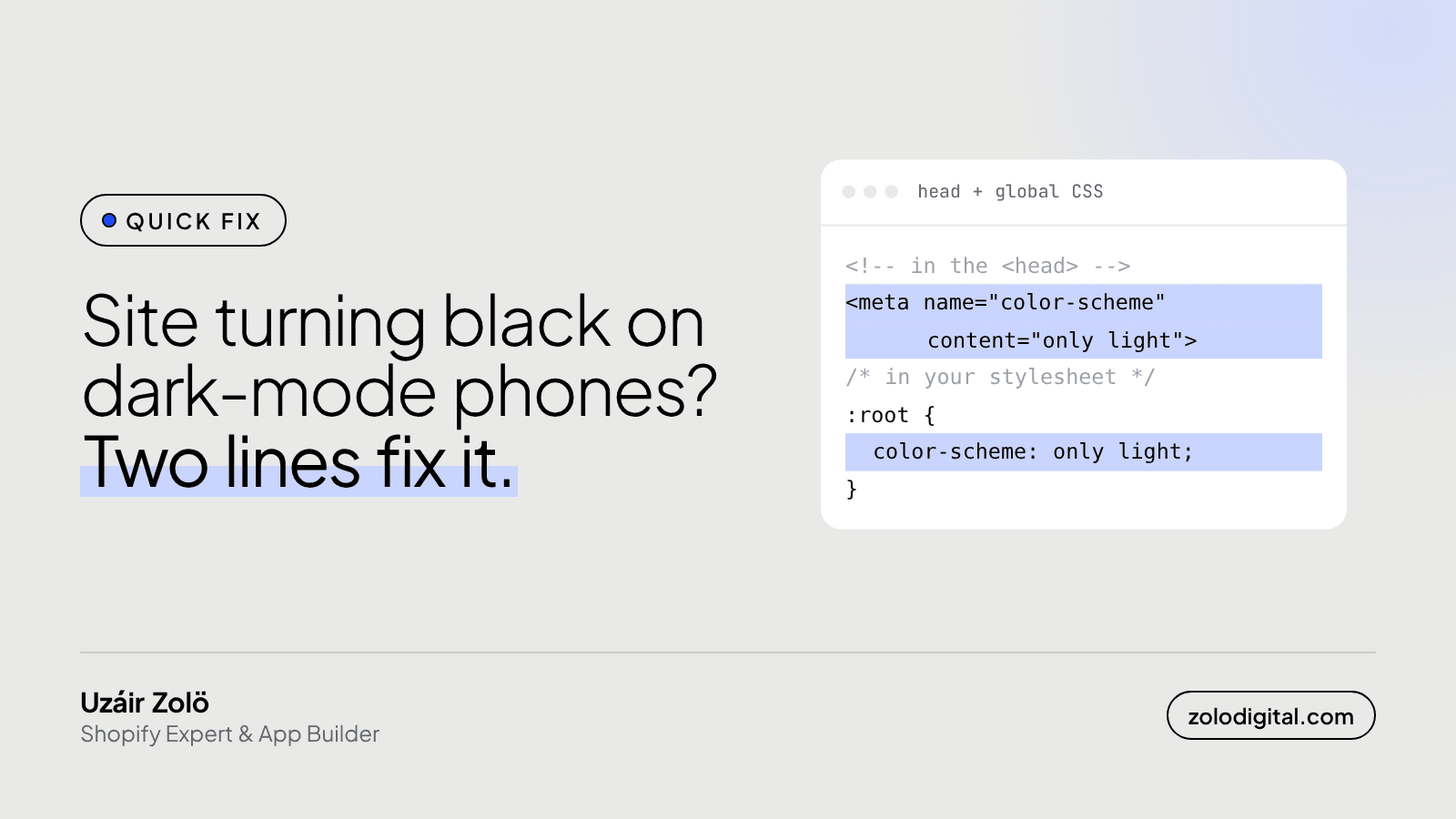
Your website turns black on some phones because the browser is generating a dark version of it. When the phone is in dark mode, Chrome on Android can automatically darken light-themed pages. If your site has no dark theme of its own, add <meta name="color-scheme" content="only light"> to the head and color-scheme: only light on :root to opt out.
This happened to my own site. zolodigital.com is light by design: an off-white background, black type, and contrast I tuned by hand. On phones in dark mode it was being inverted into something I never designed. I shipped the fix on 8 October 2026, and this post is the write-up.
What is auto dark mode?
Chrome calls it Auto Dark Theme. On Android, when the user has chosen a dark theme for their phone, Chrome can generate a dark version of light-themed websites on the fly. Users can turn it off in Chrome's settings.
The browser has no idea which colours were deliberate. It recolours the page with an algorithm. On a simple text page that can look fine. On a designed storefront or portfolio it usually doesn't:
- Brand colours shift to whatever the algorithm picks.
- Contrast you checked by hand gets recalculated.
- Logos, product photos and illustrations sit on backgrounds they weren't made for.
To a visitor, it doesn't look like a dark theme. It looks like a broken site.
How do you stop the browser darkening your site?
Tell it the page only supports a light colour scheme. Chrome's own documentation lists three ways, and I used the first and third together.
1. A meta tag in the <head> (applies before any CSS loads, so there's no flash of darkened content):
<meta name="color-scheme" content="only light">
2. Per element, if only part of the page should be left alone:
#my-element {
  color-scheme: only light;
}
3. The whole page from CSS:
:root {
  color-scheme: only light;
}
The word only is what does the work. color-scheme: light says the page supports a light scheme. only light says it supports nothing else, so the browser shouldn't invent a dark one.
How do you add it to a Shopify theme?
Open layout/theme.liquid and add the meta tag inside <head>, near the existing viewport tag:
<meta name="viewport" content="width=device-width,initial-scale=1">
<meta name="color-scheme" content="only light">
Then add the :root rule to your theme's main stylesheet. If your theme has more than one layout file (a separate password page layout, for example), add the tag there too.
How do you add it in Next.js?
This site runs on Next.js, so the meta tag comes from the viewport export in the root layout:
import type { Viewport } from "next";

export const viewport: Viewport = {
  colorScheme: "only light",
  themeColor: "#e9e9e7",
};
themeColor is optional. I set it to the page background so the browser's address bar matches the site instead of showing a default colour.
How do you check it worked?
In desktop Chrome, open DevTools, go to More tools → Rendering, and turn on "Emulate auto dark mode". Reload the page. With the opt-out in place, it should look exactly like it does without the emulation.
Then check on a real phone with dark mode on. Other browsers have their own dark modes and don't all behave like Chrome. Samsung Internet, for one, has its own setting, and I'm still testing how it treats this tag on my site, so I won't claim it's covered there yet.
Should you opt out or build a dark theme?
Chrome's documentation recommends building your own dark theme rather than opting out, and for a lot of sites that's the better answer. A designed dark theme, switched with prefers-color-scheme, gives dark-mode users what they asked for without breaking your brand.
But a dark theme is real design work: every colour, image and state needs a second version. If you don't have one yet, opting out is the honest default. A light site that looks the way you designed it beats a dark one a browser guessed at.
Want a second pair of eyes on how your store looks and works on real phones? That's part of every Shopify audit I do, or get in touch.


