
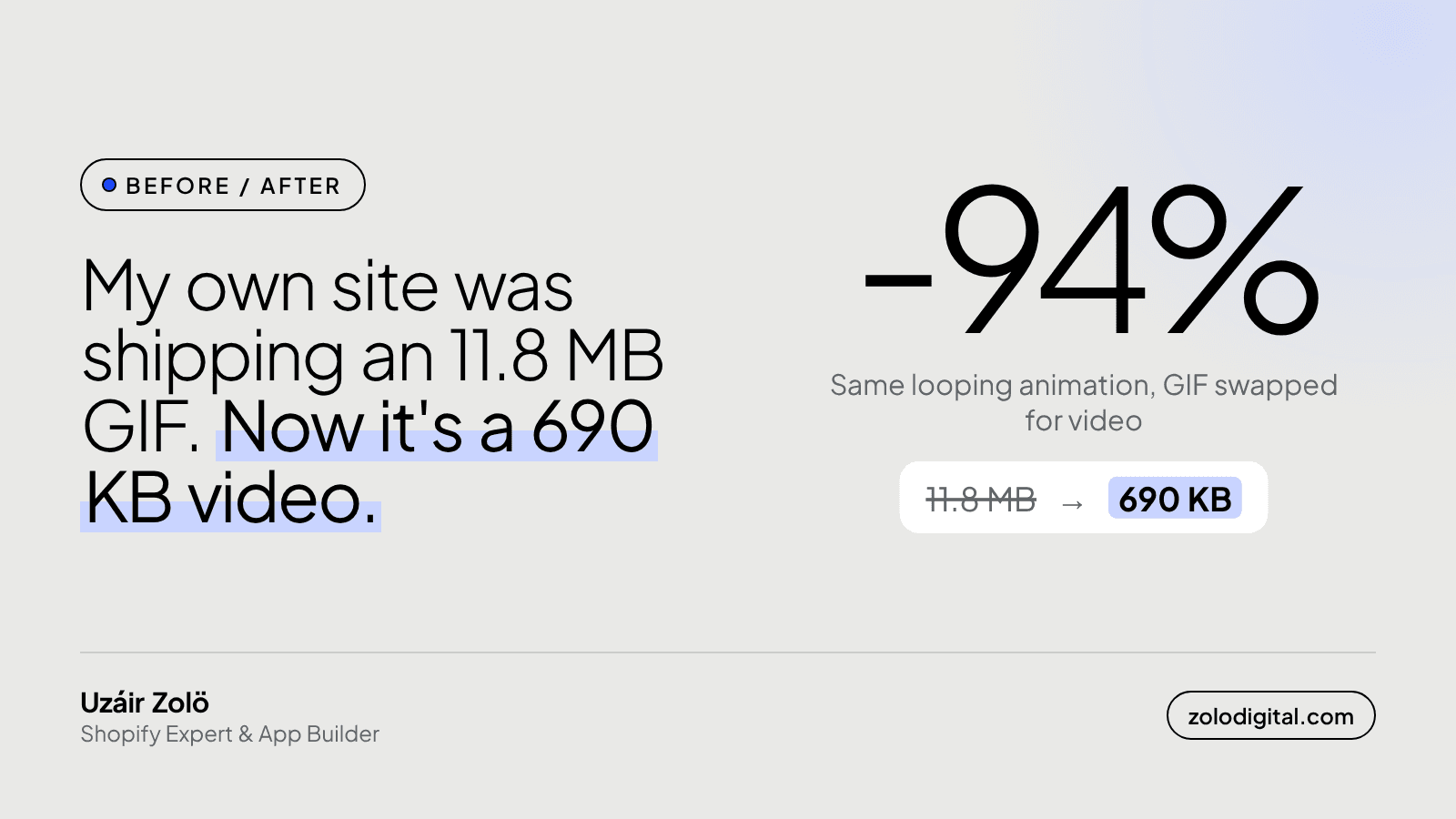
To replace a GIF on Shopify, upload the animation as an MP4 instead and show it with your theme's video section (or the video_tag filter) set to autoplay, loop and muted. It looks the same as the GIF and downloads a fraction of it. On my own site, the same animation went from an 11.8 MB GIF to a 690 KB WebM.
I'd love to say I found this on a client's store. I found it on mine.
What happened on my own site?
My portfolio has a work card for the Makeup City storefront with a little looping screen recording on it. For a while that recording was an animated GIF, and it weighed 11.8 MB. Every visitor downloaded it, including the ones who never scrolled far enough to see it.
The swap:
- The GIF became a WebM video, 690 KB.
- Safari gets an MP4 of the same loop, 390 KB.
- A still poster frame (100 KB) shows until the video plays.
- Nothing loads until the card is close to the screen. Before that, the page doesn't ask for the video at all.
Same animation, same loop, about 94% less to download. The browser picks the first format it can play, so nobody gets both files.
Why are GIFs so heavy?
GIF is a format from 1987. It stores an animation as a stack of pictures, each limited to 256 colours, with very little compression between frames. A screen recording or a product spin is exactly the content it's worst at.
Video codecs like H.264 (MP4) and VP9 (WebM) were built for motion. They store what changes from one frame to the next instead of every frame again. Ten seconds of the same animation usually comes out many times smaller, and with full colour.
How do you do it on Shopify?
If your theme has a video section or block with autoplay and loop settings (many do, so check the theme editor first): upload the MP4 in its video setting, turn on autoplay and loop, and remove the GIF. Some video sections only play on click; those aren't a GIF replacement. Shopify hosts the file and serves it from its CDN. Autoplaying video is muted, which is what you want for a GIF replacement anyway.
If you're building the section yourself, add a video setting to the schema and render it with video_tag:
{%- if section.settings.video -%}
  {{ section.settings.video
    | video_tag:
      autoplay: true,
      loop: true,
      muted: true,
      playsinline: true,
      controls: false,
      image_size: '1200x' }}
{%- endif -%}
muted and playsinline matter: browsers only autoplay muted video, and iPhones need playsinline or they try to open it full screen. image_size sets the size of the poster image Shopify generates from the video.
How do you turn a GIF into a video?
If you only have the GIF, convert it with ffmpeg:
# MP4 (plays everywhere)
ffmpeg -i banner.gif -movflags +faststart -pix_fmt yuv420p \
  -vf "scale=trunc(iw/2)*2:trunc(ih/2)*2" banner.mp4

# WebM (usually smaller in Chrome and Firefox)
ffmpeg -i banner.gif -c:v libvpx-vp9 -b:v 0 -crf 40 banner.webm
The scale filter rounds the size to even numbers, which H.264 needs. If you still have the original screen recording, export the video from that instead of the GIF: it has all its colours and frames, so it looks better at the same size.
Should the video load straight away?
Only if it's at the top of the page. A hero video can start loading with the page; give it a poster image so something shows while it buffers. A video further down can wait until the visitor scrolls near it, which is what mine does. Some themes handle that for you, and others need a few lines of JavaScript.
What's the takeaway?
If there's an animated GIF on your store, it's probably the heaviest file on the page. Swap it for a looping video and you keep the motion without making phones download megabytes for it.
If you'd like someone to find the heavy files on your store and fix them, that's what Shopify speed optimisation covers, or get in touch.


