
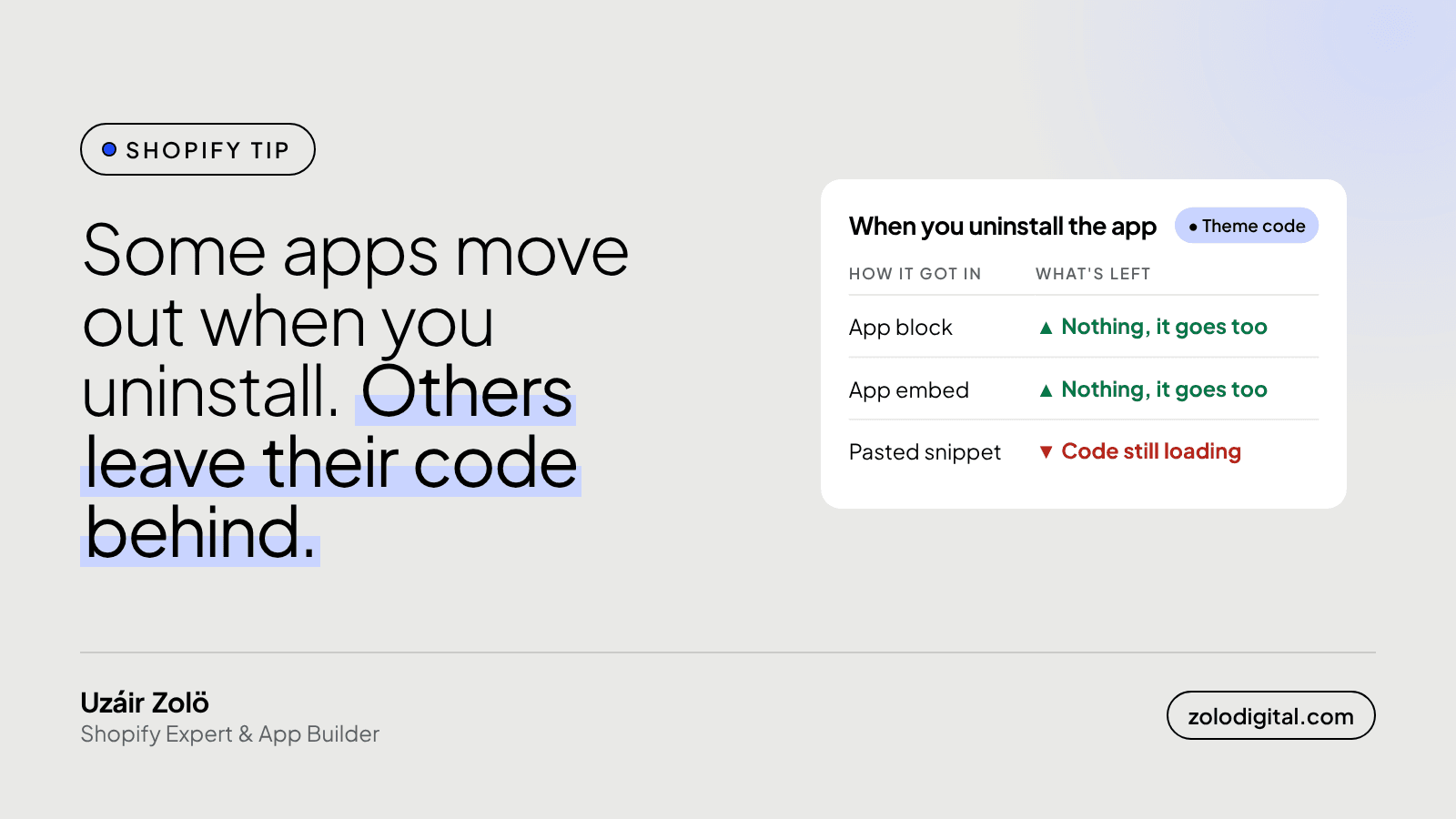
A Shopify app can get into your theme in two ways. Theme app extensions add app blocks and app embeds that you place in the theme editor, and Shopify removes them when the app is uninstalled. Injected snippets are code written straight into your theme files, and that code stays after the app is gone.
Think of it as tenants. One kind moves out and takes everything. The other kind leaves, but their boxes stay in your hallway and their alarm clock still goes off every morning.
What is a theme app extension?
It's the way Shopify wants apps to add things to an Online Store 2.0 theme. The app ships its own Liquid, CSS and JavaScript inside the app, not inside your theme, and exposes them as:
- App blocks: things you add to a section in the theme editor, like a reviews widget under the product form. You choose where it sits and can drag it around or delete it.
- App embeds: things that load on every page without a fixed spot, like a chat bubble or a tracking pixel. They live under App embeds in the theme editor, each with an on/off toggle.
Because the code belongs to the app, your theme files don't change. When the app is uninstalled, its blocks and embeds stop rendering and disappear from the editor.
What is an injected snippet?
Before theme app extensions, apps added themselves by editing your theme directly: writing a file into /snippets, then adding a line to theme.liquid or a section to load it. Some apps still do it, and some install guides simply ask you to paste the code yourself.
It usually looks something like this in layout/theme.liquid:
{% comment %} Added by SomeReviewsApp {% endcomment %}
{% render 'somereviews-widget' %}
<script src="https://cdn.somereviews.example/widget.js" defer></script>
Uninstalling the app removes its access to your store. It doesn't open your theme files and tidy up, so the render call, the snippet file and that script tag keep loading on every page until someone takes them out.
How do you tell which kind an app is?
Before you install:
- Read the install steps. "Add the block in the theme editor" or "turn it on under App embeds" means a theme app extension. "Paste this code into theme.liquid" means a snippet.
- Check the listing. Apps that work as blocks usually say they support Online Store 2.0 themes or app blocks.
After you install:
- Open the theme editor. Add a block to a section and look under Apps, then check the App embeds panel. If the app is listed there, it's an extension.
- Compare your theme code. On a duplicate theme, search
theme.liquidand/snippetsfor the app's name. New files or new lines mean it injected code.
Why does it matter when you uninstall?
With an extension, uninstalling is the whole job. With injected code, it's half of it. The other half is going back into the theme and removing what the app left, ideally on a duplicate theme first so a mistake doesn't take down the live store.
That leftover code is how stores end up loading scripts for apps nobody has used in a year. It's slower pages, and sometimes broken layouts when a snippet renders markup for a service that no longer answers.
What should you do with this?
- Prefer apps that install as app blocks or app embeds.
- When an app asks you to paste code, write down what you pasted and where.
- When you uninstall one of those, remove that code the same day.
Apps that move out cleanly are worth a lot more than their feature list suggests.
If your theme has years of app code in it and you'd like someone to go through it, a Shopify store audit covers exactly that, or you can get in touch.


