
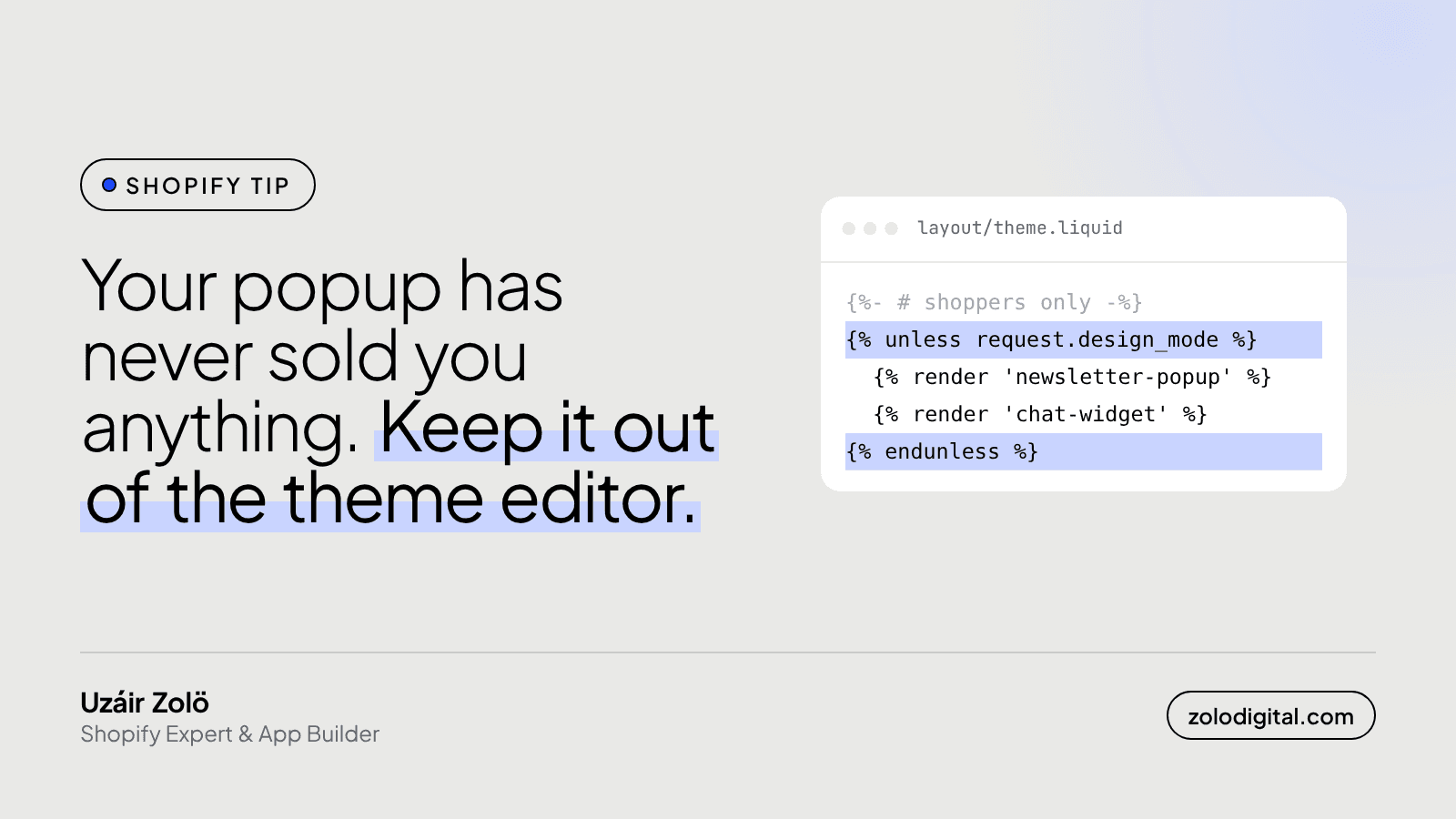
To keep popups, chat widgets and promo banners out of the Shopify theme editor, wrap them in {% unless request.design_mode %} in Liquid. request.design_mode is true only inside the editor, so customers still see everything. For scripts, check Shopify.designMode in JavaScript, and listen for shopify:section:load so sliders survive edits.
Every store owner has met this. You open the theme editor to change one heading, and the newsletter popup asks for your email. You close it. The chat bubble slides in. The cookie banner covers the section you clicked. None of them have ever sold you anything, and they're very committed.
What is request.design_mode in Shopify?
request is a Liquid object that describes the page being rendered. Its design_mode property is true when the page is loaded inside the theme editor and false everywhere else, including the live store and theme preview links.
So anything that only matters to shoppers can skip the editor:
{% unless request.design_mode %}
  {% render 'newsletter-popup' %}
  {% render 'chat-widget' %}
{% endunless %}
Put this where the popup is rendered, usually layout/theme.liquid or the section that holds it. The editor gets quieter, and the storefront doesn't change at all.
There's one catch. If you're editing the popup itself in the editor, hiding it means you can't see your changes. For a popup that's built as a section with settings, show it in the editor without the timer or the "already closed" check instead of hiding it:
{% if request.design_mode %}
  {% assign popup_delay = 0 %}
{% else %}
  {% assign popup_delay = section.settings.delay %}
{% endif %}
How do you check for the theme editor in JavaScript?
Inside the editor, Shopify sets Shopify.designMode to true. Scripts that only make sense on the real storefront can check it before they run:
if (!window.Shopify || !Shopify.designMode) {
  startExitIntentPopup();
}
This is handy for third-party widgets you load from a script tag, where there's no Liquid to wrap.
Why does my slider break when I edit a section?
When you change a setting, the editor doesn't reload the page. It fetches that one section again and swaps its HTML in place. Your script ran once on page load, set up the slider on the old HTML, and has no idea the new HTML exists. So the slider shows up as a stack of images.
The editor tells you when this happens. It fires events on the document, and the one you need is shopify:section:load:
function initSlider(root) {
  root.querySelectorAll('[data-slider]').forEach(setUpSlider);
}

document.addEventListener('DOMContentLoaded', () => initSlider(document));

document.addEventListener('shopify:section:load', (event) => {
  initSlider(event.target);
});
event.target is the section that was just re-rendered, so you only set up the part that changed. There's a matching shopify:section:unload for cleaning up timers and listeners, and shopify:block:select, which you can use to move a slider to the slide whose block was clicked in the sidebar.
Is this worth doing on a small store?
Yes, because the person who uses the editor most is you, or whoever runs the store day to day. Every popup in the editor is a few seconds and a little patience, every time. It's also a good test of your theme: if a section breaks when you edit it, it was built for page load only, and it may break in other places too.
If your theme editor feels like a fight, or sections fall apart when you change them, I can look at it in a Shopify store audit, or you can get in touch with what's going wrong.


