
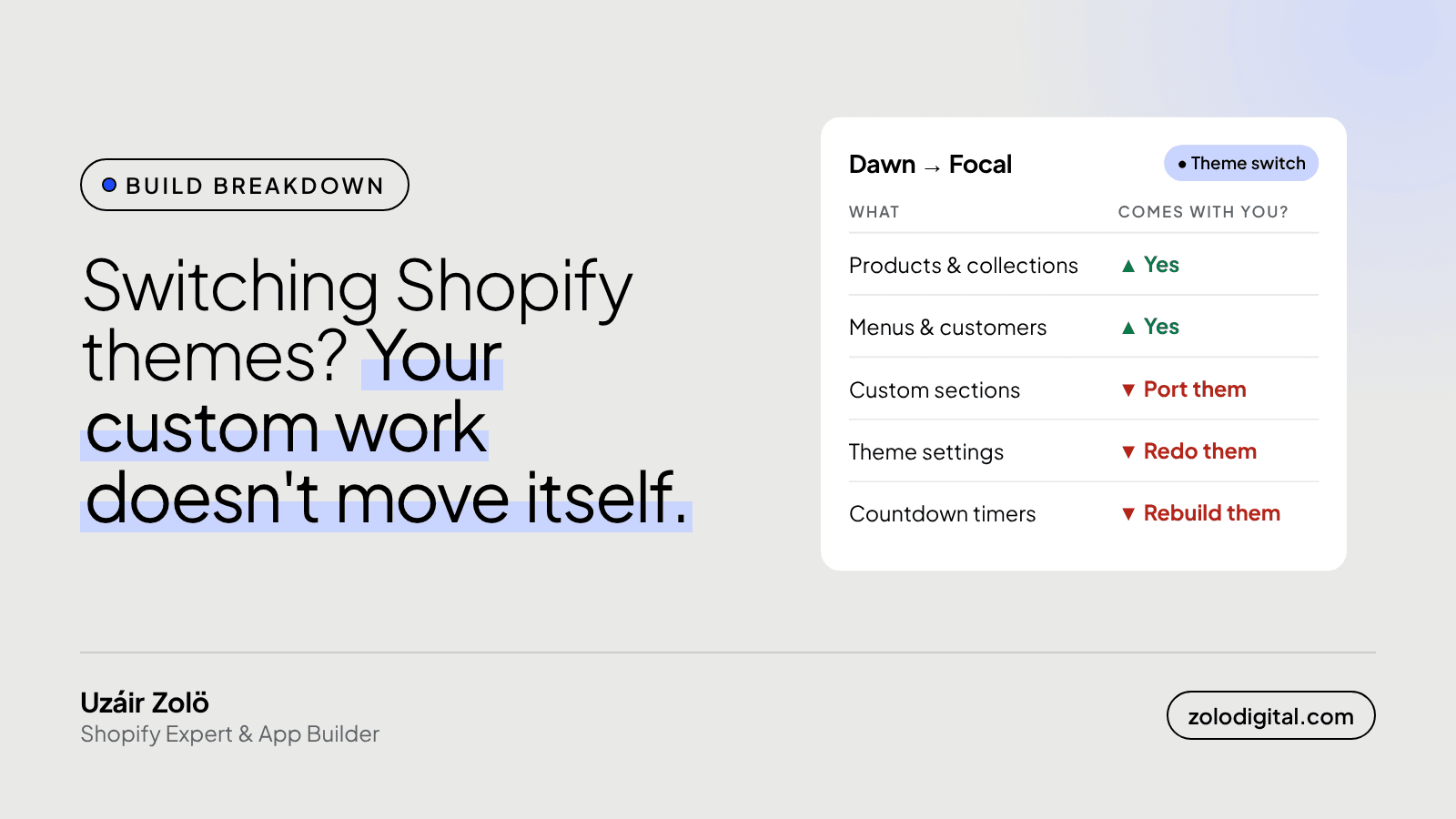
When you switch Shopify themes, your store data comes with you: products, collections, menus, customers and orders all live in Shopify, not the theme. What stays behind is everything that lives inside the old theme: custom sections and snippets, theme settings, and theme-specific features like countdown timers. Those have to be ported or rebuilt before you publish.
Switching themes is a lot like moving house. The new place looks great in the listing, then you find out none of your furniture fits. In 2025 I worked on Zero Lifestyle's move from Dawn to the Focal theme, and this is what that move taught me to check.
What carries over when you change Shopify themes?
Anything stored in Shopify itself is safe, because the theme only displays it:
- Products, variants, collections and inventory
- Navigation menus (the menus, not how the new theme lays them out)
- Customers, orders and discounts
- Pages and blog posts
- Metafields and metaobjects, though the new theme has to be told where to show them
What doesn't carry over?
Anything stored in the theme's own files stays with the old theme:
- Custom sections and snippets. A section written for Dawn lives in Dawn's
sections/folder. It has to be copied across and usually adjusted to the new theme's CSS, settings and markup. - Theme settings. Colours, fonts, header and footer layouts, and every section you arranged in the theme editor. Different themes have different settings, so this is set up again by hand.
- Theme-specific features. Countdown timers, mega menus, filter layouts and product page blocks all work the way each theme builds them. Set them up again in the new theme's way.
- Code edits. Anything someone pasted into
theme.liquidor a template, including old app snippets. A switch is a good moment to drop the ones you no longer need.
What did the Zero Lifestyle move involve?
Zero Lifestyle sells tech accessories and smart wearables across Pakistan and runs sale campaigns through the year: 10.10, 12.12, Jinnah Day and New Year. The theme has to take a new campaign without a rebuild each time.
The move covered menus, filters, countdown timers and image focal points, and carried the custom sections across: a gradient hero slider, a home category grid, a product specs block and tabbed sale collections. Because those sections came along, each sale season since is built from the same building blocks instead of one-off pages.
How do you switch themes without breaking the store?
This is the order I work in:
- List what the old theme does. Walk the home, collection, product, cart and campaign pages and note every custom section, app embed and code edit.
- Add the new theme unpublished. Keep the old one in your theme library so going back is one click.
- Port custom sections first. Copy the files, then fix styles and settings so they behave in the new theme.
- Set up the theme settings and theme features. Header, menus, filters, timers, product page blocks.
- Check image focal points. Hero and banner images crop differently in a new layout; make sure the subject stays in frame on mobile and desktop.
- Re-enable only the app embeds you still need.
- Preview everything, on a phone. Every template, a real product with variants, and the checkout path.
- Publish at a quiet time, not the week of a big sale.
The preview button is an optimist. Clicking through everything yourself is how you find what it didn't mention.
Is it worth switching themes at all?
Sometimes the right answer is to keep the theme and fix what's slow or missing. If you're weighing it up, a Shopify audit will tell you whether a switch is worth it, and if you're planning one, get in touch and I'll help you move the furniture without breaking any.


